▎A Few Words to Start
This project isn’t just something I came up with on my own — it’s built standing on the shoulders of multiple open-source contributors, so I want to start with proper thanks:
 @uefi2333 — Author of m365-native, which is the upstream project. The entire framework for the ChatHub (SignalR WebSocket) gateway, as well as the approach to authentication and protocol conversion, all came from there. I did a big rebrand, added features, and swapped out the frontend on top of it.
@tanmoumou252 — The guy in the group who shared the token estimation method. Microsoft’s ChatHub doesn’t return a usage field at all, but his “structured + whitespace-heuristic” algorithm finally made token counting more reliable instead of just guessing.
@HEXUXIU — Author of M365-Copilot2API. Many implementation details only worked out after precisely referencing that repo.
Special thanks to all of them — my code uses their work surgically, not random merges, and all sources are credited in the repo.
I also referenced a few GitHub projects but honestly can’t remember or find the originals anymore — sending thanks here as well.
────────────────────────────────────────
▎What’s This Project For?
In short: Copilot Bridge turns Microsoft’s M365 Copilot ChatHub into an OpenAI/Anthropic-compatible API. All your OpenAI SDKs, Claude SDKs, various agent frameworks, or even curl, can call M365 Copilot directly, with no need to deal with Microsoft’s private protocol.
Supports /v1/chat/completions, /v1/responses, /v1/messages — streaming, multimodal, tool calling — all included. Multiple account pool rotation, rate-limiting with self-healing, API key expiration, token statistics, these are all supported.
But today, I want to highlight one feature I’m most excited about: you can set a separate proxy IP for each account.
────────────────────────────────────────
▎ Key Feature: A Separate Outbound IP for Each Account
Anyone who’s run an account pool knows the biggest risk: seeing all your accounts use the same outbound IP and have Microsoft instantly flag them and apply risk controls. Copilot Bridge solves this by assigning proxies at the account level — not globally.
In other words:
· Got 10 M365 accounts? You can set a different outbound proxy for each one.
· Each account’s ChatHub WebSocket connection, plus its token refresh, all pass through its own proxy.
· Leave blank = direct connection. You can mix and match, with some accounts using proxies, some connecting directly.
Multiple accounts + multiple IPs means a much lower chance of association and risk control. That’s why I think this feature really deserves special mention.
▎How to Set Proxies (Leave Blank for Direct Connection)
In the “Proxy” input for each account, you can use any of the following formats:
[Format 1] Just host:port (defaults to SOCKS5)
1.2.3.4:1080
[Format 2] Standard SOCKS5
socks5://1.2.3.4:1080
[Format 3] SOCKS5 with username and password (standard three-part)
socks5://user:[email protected]:1080
[Format 4] SOCKS5 with username and password (non-standard four-part, used by some providers)
socks5://1.2.3.4:1080:user:pass
[Format 5] SOCKS5 + remote DNS (domain resolution by proxy)
socks5h://1.2.3.4:1080
[Format 6] SOCKS4 (can carry user:pass@)
socks4://1.2.3.4:1080
[Format 7] HTTP proxy (CONNECT tunnel)
http://1.2.3.4:8080
[Format 8] HTTP proxy with username and password
http://user:[email protected]:8080
[Format 9] HTTPS proxy (real TLS; only the proxy connection skips certificate verification, target site still verifies)
https://1.2.3.4:8443
(Note) The protocol matching logic is in internal/proxy/proxy.go: http(s)://, socks5/socks5h/socks4:// — all support both three-part ([user:pass@]host:port) and four-part (host:port:user:pass) formats. No scheme = SOCKS5 by default.
▎ Two Pitfalls for New Users (I Stepped on Both!)
Pitfall 1: Many so-called “HTTPS proxies” are actually just HTTP CONNECT endpoints. For these, use http://, not https://, or they won’t connect. Use https:// only for those that do real TLS listening on the client port.
Pitfall 2: If your password contains @ or :, the standard three-part user:pass@host:port will break. Use the four-part host:port:user:pass instead (don’t use colons in user/pass).
▎How to Test Connection
Single account: Fill in the proxy, click “Test” — you’ll immediately see the outbound IP and latency (✓ for green, ✗ for red), showing if the proxy works and which IP is used.
Batch test: On the account list page there’s a “Batch Test Proxies” button (next to “Reset Stats”). Click to probe all proxies in parallel; results are shown inline for each line and a banner summary at the top (“Success N / Fail M”), so you can spot broken proxies at a glance.
Certificates: Only the “to proxy” connection skips cert verification (for expired/self-signed proxies—same as fingerprint browsers), but the MS/ipify TLS is still verified — so security’s not affected.
────────────────────────────────────────
▎Other Features Worth Mentioning (Details Skipped)
 API Key Expiry — You can set each access key as “permanent / expires in N days”; expires = instant 401; you can revert to permanent anytime, keys saved as hashes.
Token Estimate — When MS doesn’t return usage, gives a reliable estimate (gpt- models use real tiktoken, others use community heuristics), with both overall and per-account stats, plus a “reset stats” button to zero all counts (stats are persisted in stats.json).
Rate Limiting & Health — Account status displayed live, 429s trigger a 2-min cooldown and switch to a healthy account.
Web Console — Account pool/add accounts (built-in PKCE OAuth), API access management, run logs, settings — five tabs ready-to-use out of the box.
────────────────────────────────────────
▎Project Link & Quick Start
GitHub: GitHub - shenping1200/m365-copilot-bridge: M365 Copilot ChatHub gateway — OpenAI-compatible API (Copilot Bridge) · GitHub
Start a Docker instance (defaults to 127.0.0.1:4141):
git clone GitHub - shenping1200/m365-copilot-bridge: M365 Copilot ChatHub gateway — OpenAI-compatible API (Copilot Bridge) · GitHub
cd m365-copilot-bridge
mkdir -p data secrets
printf ‘%s\n’ ‘replace with your own long random admin password’ > secrets/m365_admin_password
chmod 600 secrets/m365_admin_password
docker compose build && docker compose up -d
Open http://127.0.0.1:4141/ in your browser → log in → complete Microsoft authorization → create a key in “Access Config” → use the key to call /v1.
Compliance Notice: This project is an interoperability gateway, not a tool for bypassing authentication. Please only use it with Microsoft accounts and tenants you have the right to use. Default binding is to localhost; always enable TLS and access control before exposing it externally.
────────────────────────────────────────
Here are some screenshots to give you an idea of the project’s features:
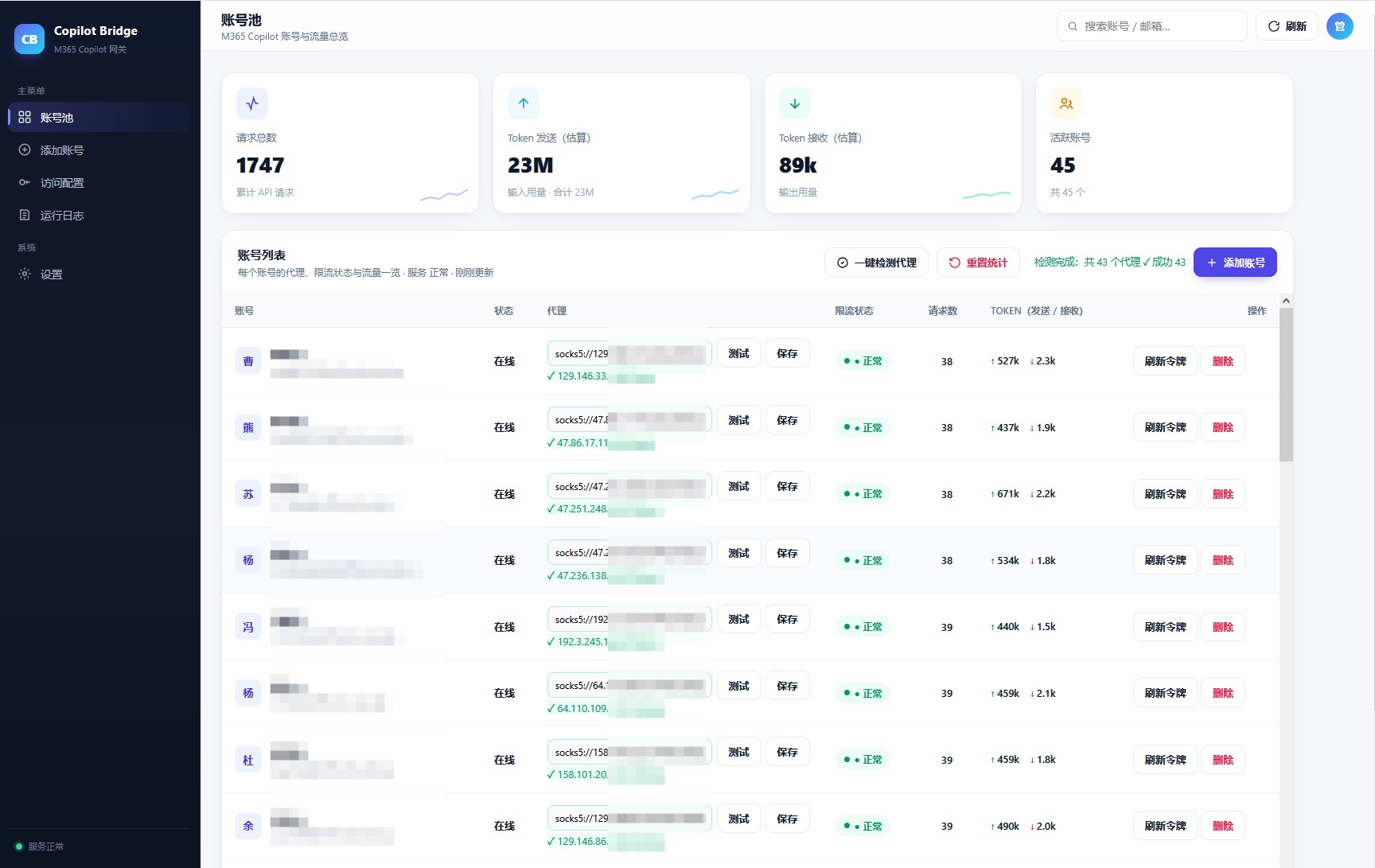

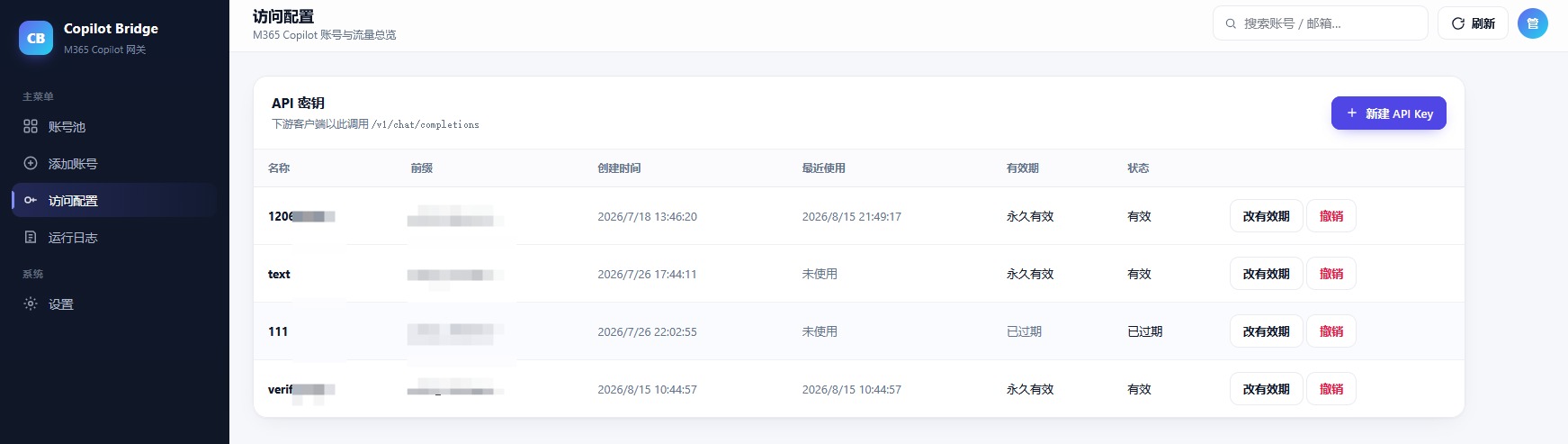
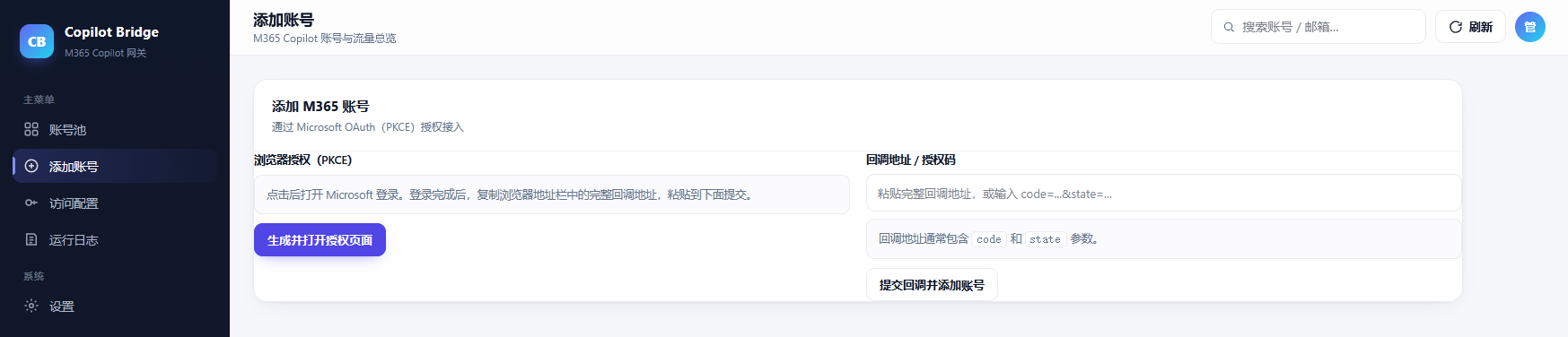
That’s all. In short: if you want every M365 account to use a separate outbound IP for better risk dispersion, Copilot Bridge’s per-account proxy feature works out of the box — just fill in host:port and go. If you have questions, feel free to reply and discuss.
If you found this useful, please leave a star and a like — it’s much appreciated!
There’ll definitely be issues as you use it, so I’ll keep updating the project. Feel free to share your experience and feedback.


